---
## Introduction
Connect IM bots to DeepSeek Harness by scanning a QR code, using an App Manifest, or entering existing bot credentials, and let the local Harness connect outward to a public AI Office. One plugin and one settings entry manage nine multi-bot IM channels and the AI Office Connector.
## Interface
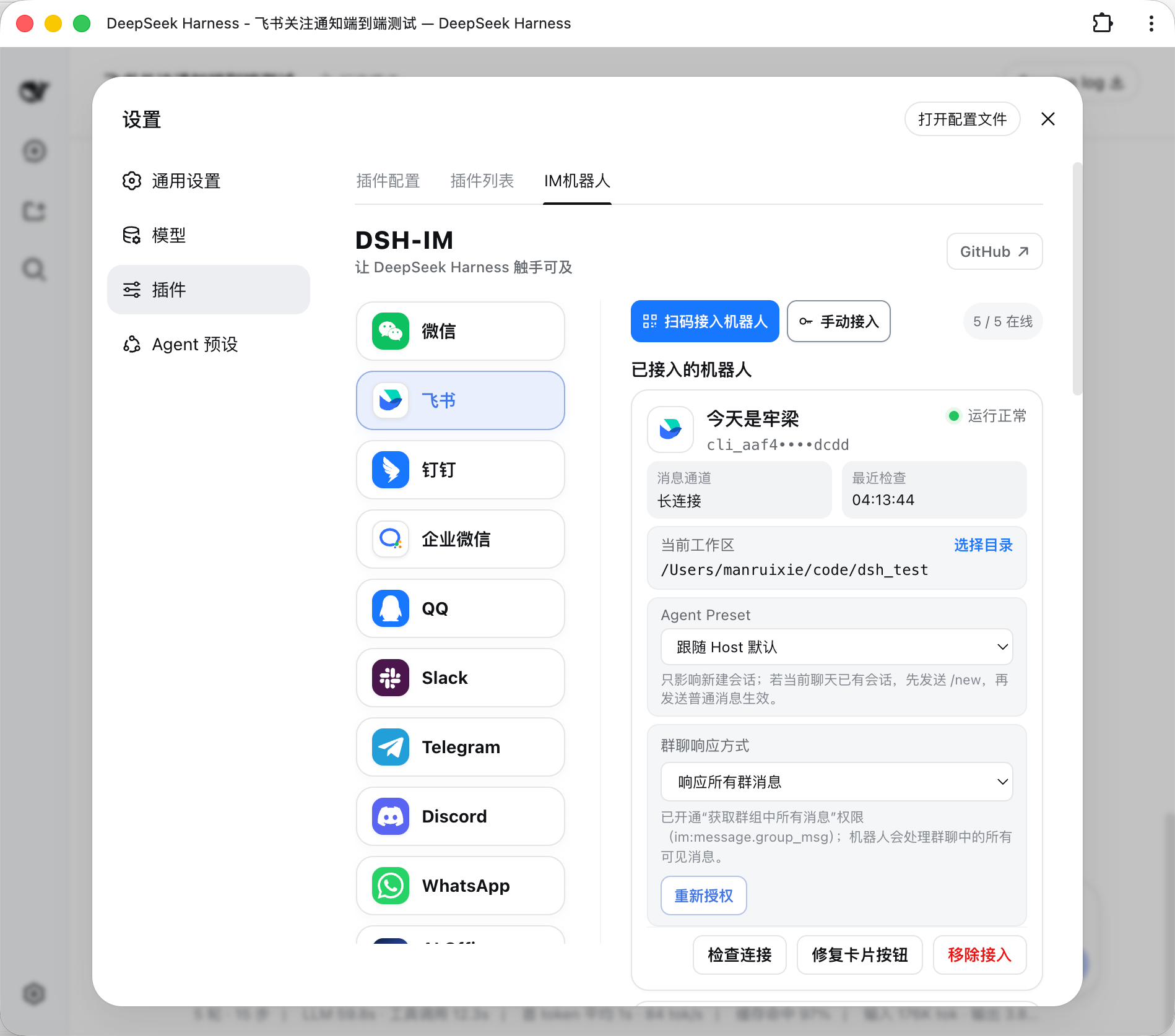
## Built-in channels
| Channel | Setup | Messaging and replies |
| --- | --- | --- |
| Feishu | Create a bot by QR code, or bind one with App ID + App Secret | Persistent connection for incoming messages; streaming cards show thinking, tool progress, and replies |
| WeChat | Scan a QR code to bind a WeChat bot | Tencent iLink long polling for sending and receiving messages |
| DingTalk | Create a bot by QR code, or bind one with Client ID + Client Secret | DingTalk Stream connection; streaming replies through AI Cards |
| WeCom | Create an intelligent bot by QR code, or bind one with Bot ID + Secret | Official WebSocket connection; native thinking state, tool progress, and streaming replies |
| QQ | Create a bot with mobile QQ QR scanning, or bind one with AppID + AppSecret | WebSocket connection; native typing and streaming replies in private chats, replies when mentioned in groups |
| Slack | Create an app from the bundled App Manifest, then enter a Bot Token (`xoxb-`) and App Token (`xapp-`) | Socket Mode connection; direct DM replies, mention-only channel replies, and preferred native streaming API |
| Telegram | Enter a Bot Token generated by @BotFather | Bot API long polling; DMs work by default and groups respond to mentions or replies, while each bot can optionally enable a private-DM allowlist; streaming uses message edits |
| Discord | Enter a Bot Token generated in the Developer Portal | Gateway v10 connection; direct DM replies, mention-only server replies, and streaming through message edits |
| WhatsApp | Scan a QR code with mobile WhatsApp to link a device | WhatsApp Web connection; read receipt and typing indicator followed by the final answer |
Other IM platforms can be added through the same channel-adapter structure.
All nine built-in channels can send JPEG, PNG, and WebP images, plus GIFs sent as image files, with optional captions to Harness. Each image is limited to 5 MB, and images in one message are limited to 20 MB in total.
## AI Office Connector
The **AI Office** page lets the local Harness connect outward to a public Office. The machine needs no public IP, forwarded port, or WebSocket server. The Device Token is written only to the Harness credential provider; the ordinary config file contains only the device ID, Office origin, workspace aliases, and instruction-preset aliases. Office selects aliases and never receives local absolute paths.
The current protocol is `office-harness.v1`. The connector authenticates and advertises capabilities with `POST /api/harness/connector/heartbeat`, then opens the downstream event plane with `GET /api/harness/connector/stream` over SSE. The settings page derives every fixed hook from the Office Base URL and reconnects with backoff after a disconnect.
A `job.available` event makes the local connector fetch the payload, validate Workspace/Preset aliases, claim a 90-second lease, and renew it every 30 seconds. It creates an isolated Harness Session, reports safe status/tool/text progress, and writes a terminal result exactly once. Tool approvals and follow-up questions surface in Office; approve, reject, and text answers return over SSE to the original Session. Heartbeats and leases recover from dropped connections.
A successful heartbeat response must be JSON: `{"ok":true,"protocolVersion":"office-harness.v1"}`. This makes a successful connection test proof of a compatible Office Connector instead of any URL that happens to return 200.
## Installation
Install the published stable release from npm (recommended):
```sh
dsh plugin --profile web add -w @xmanrui/dsh-im
```
Restart `dsh web`, then open **Settings → Plugins → IM Bot**.
To try the latest code before it is published to npm, use the GitHub-source installer instead:
```sh
npx -y github:xmanrui/dsh-im install
```
A GitHub-source installation fetches and builds a Git dependency directly. With pnpm 10 or newer, the profile may first need an `allowBuilds` entry in `pnpm-workspace.yaml`. Most users should prefer the stable npm release.
After installation, follow the built-in instructions on each channel page to scan a QR code or enter credentials. Secrets and Tokens are sent only to the local Harness Host and stored through its protected credential provider; status responses and bot lists never return them.
If this machine must use a forward proxy to reach Feishu, set `HTTPS_PROXY` to a full HTTP proxy URL before starting `dsh web` (for example, `http://proxy:8080`; lowercase `https_proxy` is also supported, with `HTTP_PROXY` accepted as a fallback), then restart the Host after changing it. Feishu registration and credential verification reuse the SDK's proxy-aware HTTP client, while the message WebSocket explicitly uses that proxy; the WebSocket path does not currently read `ALL_PROXY` or `NO_PROXY`.
| Default behavior | Description |
| --- | --- |
| Bot workspace | Each bot stores its workspace independently. New bots start with the Host's current working directory, which can later be changed from the bot card. |
| Agent Preset | Each bot can choose an Agent Preset on its settings card. When none is chosen, new Sessions follow the Host's `agent-presets.default`. A channel-level `config.agentPreset` is only the default for later new bots on that channel. Changing the preset never modifies or clears existing Sessions; if the current chat already has a Session, send `/new` and then a regular message to create one with the new selection. |
Each Telegram bot has its own access-mode control on its bot card. Existing and newly connected bots both default to **Compatible mode**: DMs receive replies, while group messages require a mention of or reply to the bot. Restrictions apply only after explicitly switching that bot to **Safe mode (private-chat allowlist)**. Safe mode ignores every group message and admits only numeric User IDs in that bot's allowlist. Enter one ID per line. Switching back to Compatible mode retains the allowlist without enforcing it, so it is available when Safe mode is enabled again. An empty allowlist in Safe mode rejects all inbound messages for that bot.
## Bot commands
| Command | Description |
| --- | --- |
| `/help` | Show the commands and usage supported by the bot. |
| `/new` | Unbind the current chat so its next ordinary message starts a new Harness Session. |
| `/status` | Check the connection between the current bot and DeepSeek Harness. |
| `/models` | List every currently configured model with a number. |
| `/model` | Show the model used by the Session bound to this chat. |
| `/model